Tuesday, March 29, 2011

How to find the IP address of the sender in Gmail

How to find the IP address of the sender in Gmail
When you receive an email, you receive more than just the message. The email comes with headers that carry important information that can tell where the email was sent from and possibly who sent it. For that, you would need to find the IP address of the sender. The tutorial below can help you find the IP address of the sender. Note that this will not work if the sender uses anonymous proxy servers.

Finding IP address in Gmail:

1.Log into your Gmail account with your username and password.

2. Open the mail.

3. To display the headers,* Click on More options corresponding to that thread. You should get a bunch of links.* Click on Show original.

4. You should get headers like this:Gmail headers : nameLook for Received: from followed by a few hostnames and an IP address between square brackets. In this case, it is65.119.112.245.That is be the IP address of the sender!

5. Track the IP address of the sender.

How to find the IP address of the sender in Hotmail

When you receive an email, you receive more than just the message. The email comes with headers that carry important information that can tell where the email was sent from and possibly who sent it. For that, you would need to find the IP address of the sender. The tutorial below can help you find the IP address of the sender. Note that this will not work if the sender uses anonymous proxy servers.
Finding IP address in Hotmail

1. Log into your Hotmail account with your username and password.
2. Click on the Mail tab on the top.
3. Open the mail.
4. If you do not see the headers above the mail message, your headers are not displayed. To display the headers,
* Click on Options on the top-right corner
* In the Mail Options page, click on Mail Display Settings
* In Message Headers, make sure Advanced option is checked
* Click on Ok button
* Go back to the mails and open that mail.

5. If you find a header with X-Originating-IP: followed by an IP address, that is the sender's IP addressHotmail headers : name ,In this case the IP address of the sender is [68.34.60.59]. Jump to step 9.
6. If you find a header with Received: from followed by a Gmail proxy like thisHotmail headers : nameLook for Received: from followed by IP address within square brackets[].In this case, the IP address of the sender is [69.140.7.58]. Jump to step 9.
7. Or else if you have headers like thisHotmail headers : nameLook for Received: from followed by IP address within square brackets[].In this case, the IP address of the sender is [61.83.145.129] (Spam mail). Jump to step 9.
8. * If you have multiple Received: from headers, eliminate the ones that have proxy.anyknownserver.com.
9. Track the IP address of the sender

How to find the IP address of the sender in Yahoo! mail

When you receive an email, you receive more than just the message. The email comes with headers that carry important information that can tell where the email was sent from and possibly who sent it. For that, you would need to find the IP address of the sender. The tutorial below can help you find the IP address of the sender. Note that this will not work if the sender uses anonymous proxy servers.

Finding IP address in Yahoo! Mail

1. Log into your Yahoo! mail with your username and password.
2. Click on Inbox or whichever folder you have stored your mail.
3. Open the mail.
4. If you do not see the headers above the mail message, your headers are not displayed. To display the headers,
* Click on Options on the top-right corner
* In the Mail Options page, click on General Preferences
* Scroll down to Messages where you have the Headers option
* Make sure that Show all headers on incoming messages is selected
* Click on the Save button
* Go back to the mails and open that mail.
5. You should see similar headers like this:Yahoo! headers : nameLook for Received: from followed by the IP address between square brackets [ ]. Here, it is 202.65.138.109.That is be the IP address of the sender!
6. Track the IP address of the sender

Keeping the Windows XP Core in the RAM

you have 512 MB or more of RAM, you can increase system performance by having the Windows XP 'Core' kept in the RAM instead of paged on the hard disk.

Go to Start -> Run - Type regedit and press enter - On the left hand side tree, navigate to

HKEY_LOCAL_MACHINE\SYSTEM\CurrentControlSet\Control\Session Manager\Memory Management\

- On the list on the right side, look for an entry called 'DisablePagingExecutive'
- Double click it
- Press 1 on your keyboard
- Click OK
- Exit regedit and reboot the computer

To revert to the default setting, follow the same steps as above, but this time, press 0(zero) instead of 1 on the keyboard.

Clean out the prefetch folder

Windows XP uses a system called 'prefetch' to organize and preload some of the data necessary for commonly used applications and files. A folder called prefetch is used to store the information the operating system needs to carry out this operation.

After several months of use, the prefetch folder may become quite overloaded with older references to software and files that may no longer be in use.It's a good idea to manually empty the older files out of the prefetch folder every few months or so.

To do this: Navigate to 'c:\windows\prefetch' and delete all .
PF files that are older than a week or two.

How to Delete a file Thumb.db

Thumb.db is is a cache of the current picture in that directory.to remove it go for following

step1 > open "WINDOWS EXPLORER".

2>go to "TOOLS".

3>open "FOLDER OPTIONS".

4>go to "VIEW".

5>see 1st section "FILES & FOLDERS".

6>click on the "DO NOT CACHE THUMBNAILS".

now the thumbnail file will be removed from ur computer once u do this the file will be never created.

How to Show ur name after time in taskbar

Hi freinds !

I m here to tell u a trick to add up ur name in place of AM and PM beside time and make urself to feel proud among ur group of frnds.

Its simple
Start -> Control Pannel -> Regional and LAnguage option -> Customize (beside English US) -> Go to TIME tab -> Change AM symbol and PM symbol from AM and PM to ur name -> Apply -> Ok ...

IS it changed ??? Might be not ...Now go to time in taskbar and Double Click it to open "Date and time property" ...Look place where time chnges in digital form i.e. 02:47:52 AM , click to arrow to cnage the AM or PM by selecting and press arrow. It will Show ur name or name that was entered by u, Apply -> OK and be HAPPY 8)

how to fix Error Reporting in XP

If error reporting in XP is bugging you then turn it off.

When a system error occurs in XP, a little dialog box appears asking if you want to report the error to Microsoft. Click the message box to make it disappear. You don't have to report the error if you don't want to and on today's "Call for Help" Leo shows you how to turn off the feature if you find it distracting.

To disable error reporting, follow these directions:

1. Right-click My Computer and choose Properties.
2. Click the Advanced tab on your System Properties dialog box.
3. Click the Error Reporting button on the Advanced tab.
4. Place a checkmark next to "Disable error reporting."
5. Leave the other radio button unchecked next to the text labeled, "But notify me when critical errors occur."
6. Click OK.

Hidden Programs In Windows XP

Is it strange to hear , but true that some good programs are hidden in Windows XP !!!

Programs :

1. Private Character Editor :

Used for editing fonts,etc.
** start>>Run
** Now, type eudcedit

2. Dr. Watson :

This an inbuilt windows repairing software !
** start>>Run
** Now, type drwtsn32

3. Media Player 5.1 :

Even if you upgrade your Media Player, you can still access your old player in case the new one fails !!!
** start>>Run
** Now, type mplay32

4. iExpress :

Used to create SetupsYou can create your own installers !
** start>>Run
** Now, type iexpress

Add Your Name (or) Application to right click Of My Computer

Caution ..
As it is related to Windows regisrty it can be dangerous
so,Try This at ur own risk


To write your name on right click application
please follow the steps.

1.Copy/Paste the following code in Notepad And then Save it as .reg

Windows Registry Editor Version 5.00
[HKEY_CLASSES_ROOT\CLSID\{20D04FE0-3AEA-1069-A2D8-08002B30309D}\shell\Registry Editor]
@="Your Name Or Name of the Application"
[HKEY_CLASSES_ROOT\CLSID\{20D04FE0-3AEA-1069-A2D8-08002B30309D}\shell\Registry Editor\command]
@="Location Of The Application"

2.Now edit it and then Type your name In

Eg:

[HKEY_CLASSES_ROOT\CLSID\{20D04FE0-3AEA-1069-A2D8-08002B30309D}\shell\Registry Editor]
@="Rajesh"

3. If u want to get any application, once you click Your name or name of application
Then , Type the location Of the application Which u want to open In:

[HKEY_CLASSES_ROOT\CLSID\{20D04FE0-3AEA-1069-A2D8-08002B30309D}\shell\Registry Editor\command]
@="Location Of The Application"

For eg.C:\Program Files\Yahoo!\Messenger\messenger.exe
Thats It finally save it And then Run it .

------------------------------------------------------------
To add Application Control Panel

[HKEY_LOCAL_MACHINE\SOFTWARE\Classes\CLSID\{20D04FE0-3AEA-1069-A2D8-08002B30309D}\shell\Control Panel\command]
@="rundll32.exe shell32.dll,Control_RunDLL"

To add Application Add/Remove

[HKEY_CLASSES_ROOT\CLSID\{20D04FE0-3AEA-1069-A2D8-08002B30309D}\shell\Add/Remove\command]
@="control appwiz.cpl"

To add Application Reboot

[HKEY_CLASSES_ROOT\CLSID\{20D04FE0-3AEA-1069-A2D8-08002B30309D}\shell\[Reboot]\command]
@="shutdown -r -f -t 5"

To add Application Shutdown

[HKEY_CLASSES_ROOT\CLSID\{20D04FE0-3AEA-1069-A2D8-08002B30309D}\shell\[Shutdown]\command]
@="shutdown -s -f -t 5"

-.-.-.-.-.-.-.-.-.-.-.-.-.-.-.-.-.-....-......----..--.-...--.-..-

Posted by Rajesh at 4:19 PM Links to this post
Tips to recover scratched CD's
1. Spread a cloth on a flat surface and place the CD on it.
2. Then, hold the disc with one hand, use the other to wipe the polish into the affected area with a soft cloth.
3. Wait for it to dry and buff using short, brisk strokes along the scratch, not across it.
4. A cloth sold to wipe spectacles or camera lenses will work super m8's.
5. When you can no longersee the scratch,, wash the disc with water and let it dry before playing. Intersting isnt it? Try it right now
I have used toothpaste with good effects before Ive also used car paint cutting compound on deeper scratches. It does leave lots of smaller scratches (as it is a cutting compound after all) but it will remove the worst scratches in most cases.
ya u r gng to b surely befinited by this Operation


* Fingermarks/prints cause 43% of disc problems!
* General wear & tear causes 25% of disc problems!
* Player-related issues cause 15% of disc problems!
* Remaining Others

Wednesday, March 23, 2011

Reach the shutdown button missing

ormal shutdown button windows xp is in the start menu. When the start button is pressed or clicked on, in addition to the program menu, desktop, run and others there also there is a button to log off and shutdown buttons. But have you ever experienced friend shutdown button does not appear or disappear? Usually just realizes that shutdownnya button missing when going to turn off the computer. Wah so confused how to turn it off. If so then it could have been caused by a deliberate one to hide the shutdown button. Because there is a trick or a way to remove or hide the shutdown button. In such settings to turn off the computer actually does not have to by force or directly off electrical power. How normal can still be done by pressing the Ctrl + Alt + Delete or through task manager.

Reach the shutdown button missing

Back to the shutdown button is missing. Here is a trick to bring back the shutdown button is missing. Automatic if done otherwise then shutdown button will be missing:

  1. Go to the Group Policy Editor by opening the Run from the Start menu, then type gpedit.msc and press enter
  2. In the User Configuration select Administrative Templates and then select the Start Menu and Taskbar
  3. In the right pane double click Remove and Prevent Access to the shutdown command
  4. Change from enabled to Not Configured
  5. Click OK
  6. Restart or log off the computer.
Reach the shutdown button missing

Note: If you remove the settings and Prevent access to the shut down command is set to enabled, then the shutdown will be lost.

If you want to do the settings through the registry editor, the steps are as follows:
Now on the left navigation buttons to:
  1. Go to the windows registry editor by way of the run menu and type regedit and press enter.
  2. Sebaiknyalah first backup your regedit.
  3. Go to HKEY_CURRENT_USER \ Software \ Microsoft \ Windows \ CurrentVersion \ Policies \ Explorer. If. on the right panel there is no dword wil: wil, then create it with right click> New> Dword Value, type a name (rename) the name wil: wil.
  4. Double click on the wil: wil then change the value data to 0
  5. Close the Registry Editor
  6. Log off or restart the computer

How to disable windows media player

Windows media player is the default Windows media player application. Right now a lot of media player applications that have been issued by a third party. And the third made ​​it interesting applications are also freeware or free. So that computer users sometimes prefer to use windows media player application of a third party as an application to play a song or play a video, like winamp, KMPlayer, Power DVD, VLC Media Player, GOMPlayer, and others. Well than not used, windows media player is better off alone.

How to disable windows media player can follow the method below:

How to disable windows media player in Windows xp

1. Go to control panel
2. Select Add or Remove Programs
3. Click or select Add Remove Windows Components
4. In the Windows Components Wizard window, locate and remove the check in Windows Media Player, then click next
5. Wait until the completion (finish)

How to disable windows media player
disable windows media player in Windows xp

How to disable windows media player in Windows 7

1. Go to control panel
2. All items on the window view, select / click Programs and Features
3. In the left pane, click Turn Windows Features on or off
4. In the Windows Features window, expand the Media Features.
5. Remove the check mark in Windows Media Player
6. If there is a message that appears click Yes
7. Click OK

How to disable windows media player
disable windows media player in Windows 7

How to disable windows gadgets in Windows 7

In Windows 7 there are additional tools that users can use to ease the use of computers in the form of gadgets. This gadget is installed on the desktop that can be utilized easily. Gadget provided by windows 7 is for example Clock, Calendar, CPU Meter, and others. If want other gadget can be downloaded online at the link provided.
How to disable windows gadgets in Windows 7

However, If a friend wishes to disable this gadget windows with a view to accelerate and increase the performance of Windows 7, or because they never use it, then it can be followed on how to disable gadget windows 7 below:

  1. Go to control panel
  2. All items on the window view, select / click Programs and Features
  3. In the left pane, click Turn Windows Features on or off
  4. In the Windows Features window, remove the check mark on the Windows Gadget Platform
  5. Click OK
  6. Wait until the process is complete
  7. Restart computer

Enabling missing the folder options

Folder options in windows explorer is in the tools menu on windows xp. Folder options serves to make arrangements click items (double click or single click to open a file), Browse folders, files and folders settings including show hidden files or settings, file types and others. However, due to a virus, folder options on tools menu may not appear or are disabled, so the user can not make arrangements regarding the files and folders and so forth.

Enabling missing the folder options
To bring up or activate the folder options are missing this can be done with minimal settings on windows registry editor.

Open windows registry editor then go to:

HKEY_CURRENT_USER \ Software \ Microsoft \ Windows \ Current Version \ Policies \ Explorer

HKEY_LOCAL_MACHINE \ Software \ Microsoft \ Windows \ Current Version \ Policies \ Explorer

In each of the key above the right pane delete the DWORD with name NoFolderOptions.
Log off or restart the computer.

Until here first Tutorial Johan Computer about Enabling missing the folder options. Difficulties or if any suggestions please write in the comment section below

Sunday, March 20, 2011

Recent Post Widget as Headline News

Recent post widget as Headline News is one widget that much-love by the bloggers. besides it takes place with a lot of  blogs, Recent Post widget as Headline News also makes the blog look more attractive.

Okey, to Shorten the time just give the steps for producing Recent Post Widget as Headline News :
1. Go into your Blogger Account.
2. Once you are in the dashboard, then select the tab design.
3. Click Add a gadgets. display will appear like the picture below.
Recent Post Widget as Headline News

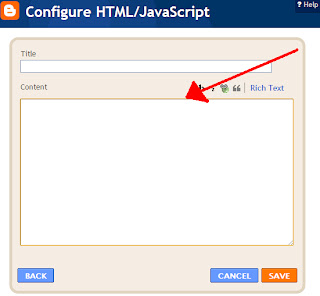
4. Add the HTML / JavaScript. it will appear again display as below.
Recent Post Widget as Headline News

5. On the title blank. conten fill in the following code.
<script type="text/javascript">
    var jc_url_blog = "http://johancomputers.blogspot.com/";
    var jc_count_post = 20;
    var jc_color_backgroud = "white";
    var jc_color_line = "black";
    var jc_position = "bottom";
    var jc_show_title = true;
    var jc_backlink = true;
</script>
<script src="https://sites.google.com/site/johanbone/gadget/Headlinenews-jc.js"></script>
red printed on paper that can change within their your own.
var jc_url_blog = "http://johancomputers.blogspot.com/"; Change with your blog url
var jc_count_post = 10Count recent post that will appear
var jc_color_backgroud = "white"; Background color
var jc_color_line = "black"; Line color
var jc_position = "bottom"; Position of the widget can you change the top or bottom according to your wishes

Among Tutorial Johan Computer Recent Post Widget as Headline News. if any difficulties or suggestions please write in the comment section below

How to Disable Autorun in Windows Xp

At this time the spread of virus, spyware or malware lot via a USB Flash disk. flash disk that is infected with the virus when connected to the computer is clean (no viruses), and the computer default settings to enable it autoplay or autorun, then the computer wil be infected with a virus, unless the computer already has the latest AntiVirus updates that identify the virus.

The following step by step how to disable autorun in windows xp :
1. Click the start button ---> Run.
2. Type gpedit.msc and click  OK.
3. Click on Computer Configuration ---> Administrativ Template ---> System.
4. Double click on turn off Autoplay.
How to Disable Autorun in Windows Xp

5. Click the Enable option.
6. At the option Turn off Autoplay on, select All drives.
7. Click OK
8. Repeat step 4,5,6,and 7  on User Configuration  ---> Administative Templates ---> System

Hopefully useful article Johan Computer this time. For those of you who want to add or refute the above tips,
i wait in the comments box.... Thank you.

Saturday, March 19, 2011

How to Create a Hotspot

Hotspots or places that provide Internet access services using wireless. If you want to open a Cafe business, or restaurant, for those interested and come to your home, you can make free Internet service for those who visit. This is because a number of devices that have been equipped with wireless technology, so the trend is the use of a higher.

How to Create a Hotspot
Unfortunately, not everyone understands how to build Wi-Fi infrastructure. Lack of information and perhaps a somewhat expensive price makes many business owners are reluctant to build a hotspot. In fact, there is great potential to add hotspots interest and also to increase revenues from the place itself.

This article will discuss important things you need to know to provide the hotspot service. This is discussed is relatively simple that can be followed by beginners though (as long as it already has the basics of network). At the end of the article, we discuss a tool that is practical enough to be used to create a hotspot.


Equipment Needed to Make a Hotspot:

1. Access Point.
How to Create a Hotspot

Function Access Point as a hub / switch on the local network, which acts to connect the local network with a wireless network / wireless the client / your neighbors, this is an access point internet connection from where you are emitted or transmitted via radio waves, the size also affects the signal strength coverage area will be achieved, the higher the signal strength (size in units of dBm or mW) to expand its reach.

2. Omni Antenna
How to Create a Hotspot
To expand the coverage area until a few Kilometers, you need an external omni antenna, even when you buy an access point equipped with omni antenna, but not enough because only a magnitude of about 3-5dB, to expand the coverage area, you'll need an external omni antenna, flat - average 15db power. Omni antenna has a radiation beam or 360 degrees, so the match can reach the client from any direction.

3. Box Access Point
How to Create a Hotspot
To protect your access point, need a box-shaped protective device, can be made of plastic or metal plate, the average box is equipped with a safety lock, and this box should be placed immediately below the antenna.

4. Pigtail
How to Create a Hotspot
Jumperl Pigtail wires or cables needed to connect between the omni antenna to the access point, the maximum length of notice required only 1 meter, if an extension you will experience signal degradation (dB loss) at both ends of the cables have connectors that plug type connector according to the inherent your access point.

5. POE (Power Over Ethernet)
How to Create a Hotspot
That the power cable has not been raised to "turn on" access point then you need a tool "POE" This tool serves to mengalirankan electricity via an ethernet cable or UTP / STP, with this tool you will not need to bother buying another power cord to the top of the tower , more practical and economical.

6. Cable UTP / STP
How to Create a Hotspot
Cables UTP / STP is needed to connect an access point with a network cable at your local LAN, so the computer can be connected to the Gateway / Router or Hub / Switch, select cable UTP / STP good quality to improve the quality of electricity through the POE. stpot

7. Anti-lightning (Lightning Arrester)
As a safety from lightning then you need a tool that serves to channel the electrical overload when lightning struck the cable earthing (grounding), this component is installed on jumper cables between devices and access points with external antennas. Grounding for lightning rods are generally planted with copper to a depth of several meters to reach the water.

8. Tower
How to Create a Hotspot
To get the maximum coverage area of ​​coverage, you need to raise external omni antenna to a high place for the WLAN client you can catch your radio signals properly.

Good luck ... :)

Why Flash Drive Not Detected Computer???

Flash Drive Not Detected Computer
Some things that should be suspected when the UFD (USB Flash Disk) that we have not detected when plug into PC, among others:

- Damaged USB Port
- Setting problem (Bios, Windows)
- Driver problems
- Damaged by Physical
- Etc.
Why Flash Drive Not Detected Computer
To try to overcome it can be done the following points:Try our USB plug in another USB port / switch-move, if they have not managed to try to plug into another PC, if successful then we are not problematic USB and suspicion 100% to the PC.

Or do the opposite, try another USB socket on your PC (if any) / or other devices that use USB ports. By assumption, if the tools we connect is detected, the USB ports are not problematic.

Check the BIOS settings may disable intentionally or not, this could have happened does not change the settings with the motherboard battery when we realize we've worn out / weak.

Check in Device Manager, follow these steps:
  1. Click Start> Settings> Control Panels.
  2. Double Click on the icon system,
  3. Once open Syistem Properties window, click the Hardware tab
  4. Click the Device Manager button
  5. Then check on the Universal Serial Bus Controllers, it appears there was a problem
  6. A question mark in this section indicates the hardware is not recognized or td driver
  7. Red cross marks in this section indicates disabled, so if this happens do right click and select enable
  8. Included in this is likely to re-install the USB Flash disk driver.
Check the registry, how:
  1. Click Start> Run
  2. Enter: regedit then enter
  3. Go to: HKEY_LOCAL_MACHINE \ SYSTEM \ CurrentControlSet \ Services \ UsbStor
  4. The value Dwords be worth 3 (enable), if not 3 then update with 3 and then close and restart
Another possibility is a PC infected by virus, it must be cleared of the virus by using anti-virus

If you suspect a new software that is installed as the cause then try to uninstall the software first.

Try using a software utility to find and mount the partition (hopefully can).

How to Shutdown Windows with Time Bomb

Shutdown Windows with Time Bomb
Exactly what the title above sich mean?, He .. he ... Yes this is a trick where if you click on an icon that is didesktop us so our windows will shutdown in a period that we have set previously.

How to Shutdown Windows with Time Bomb
This trick I learned while traveling on YouTube and this trick also can we use for computer ignorant of our friends.

if you do not know the tricks then this trick would be considered a virus, because of what?, this trick will issue a small pop up window notifying you that the windows will shut down within a few seconds, like a time bomb which was filmed Loch. And the pop ups can not be eliminated, either by way of task manager or anything else unless we have a key.

Here's how to how to Shutdown Windows with Time Bomb:
Right-click on the desktop, then select new shortcut, then you will see a small window, then input into a text box = shutdown-s-t 600-c "Your message"

Example: shutdown - s-t 600-c "Greetings from Johan Computer" (figure 600 is a unit of seconds, so 600 = 10 minutes, and that number can be changed as desired)

Then click next, then you will be asked to make for your icon, you are free to give any name, this time I as an "Internet Explorer", then click Finish.

Successful, but its really ugly icon huh?, for that right click on the icon, then click properties, click change icon, Just click ok if there is confirmation, then select the icon to taste (I'm here with the example of the Internet Explorer icon). OK , apply, OK.

Then let's try double-clicking the icon, then if true it will come out a confirmation that the windows will shutdown in a few minutes.

Well if allowed to continue then it will actually shutdown.
To address them, simply click Start, select Run, then typing shutdown.

GOOD TRY... ;P

Wednesday, March 16, 2011

Transfer Gmail Contacts to Outlook

Transfer Gmail Contacts to Outlook
This time Johan Computer will share a tips and tricks in using Ms.Outlook. As I wrote at the title, which I will tell this time is how to transfer Outlook Contacts Into Gmail is "automatic" instead of typing it one by one into Ms.Outlook.

After I saw a lot of my friends who use Ms.Outlook complain if you have to type the email contacts one by one into Outlook, I became intend to share these tips to his fellow gentlemen, may have been many who know this way. The masters do not be bored reading it well. hehehe

There is a quick way to Transfer Gmail Contacts to Outlook. Here's How.
  • Go into your Gmail account, and select Contacts, then select all the Contacts and then select all eat each contact will be at the check directly.
  • Click Export in the top right box
  • Select the Outlook's CSV format (for importing into Outlook and Other applications), click Export.
  • Click Save and save it wherever you want.
The next thing we do is import the contacts into Ms.Outlook
  • Open up your Ms.Outlook and then click File, Import and Export
  • In the Import and Export Wizard, select Import from another program or file, then click NEXT.
  • Next select Comma Separated Values ​​(DOS) and click NEXT.
  • Click on Browse to find the CSV file that you created earlier, and select the option you want. Here we do not import the same item, so just select Do not import aja Duplicate items. And then? Click next again.
  • Select a folder or a location to save it and then select Next.
  • The next choice, is basically verify what we have done all this and also offers the option to change their destination folder. If it is definitely with your choice of these. Just click Finish.
Here's how to quickly Transfer Gmail Contacts to Outlook, just 10 easy steps necessary ribet aja koq ga-complicated type 1 per 1 contacts. Hopefully these tips and tricks useful for all my friends.

Twitter Delicious Facebook Digg Stumbleupon Favorites More